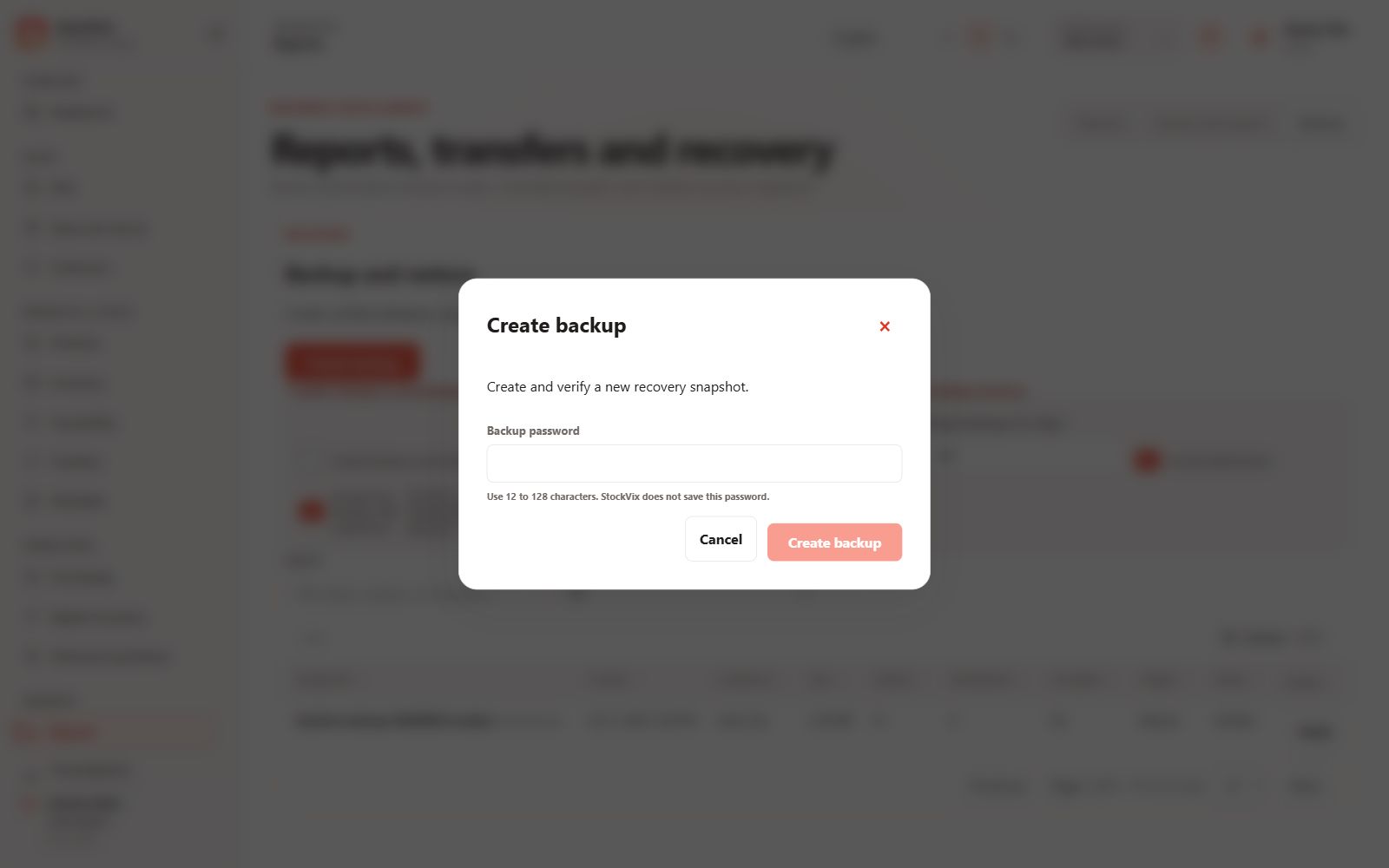
Create a backup
- Open Backup & restore and choose the backup scope.
- Use encryption when protected digital data is included, and keep the backup password safe.
- Create the backup, confirm verification and keep the completed file somewhere you control.
Keep records safe
Do not copy the live database while the app is using it and do not put it in a synchronized drive folder. Completed backup files may be stored in your own drive or cloud storage; automatic cloud sync is not currently available.
Review before restoring
- Choose the backup through the restore workflow.
- Provide its backup password if encrypted and review compatibility, contents and warnings.
- Create a current backup before approving replacement of business data.
Confirm restoration
Follow the staged restore process and verify the resulting workspace. A business-data restore and moving a license to another computer are separate operations. Do not overwrite an existing workspace with an unfamiliar file.