Choose the access mode
Enable browser access only when needed. The host computer can use the localhost address shown by StockVix. Other devices need the explicitly enabled network POS configuration.
Prepare secure access
- Review the network settings, supported secure connection, authentication and allowed-device controls.
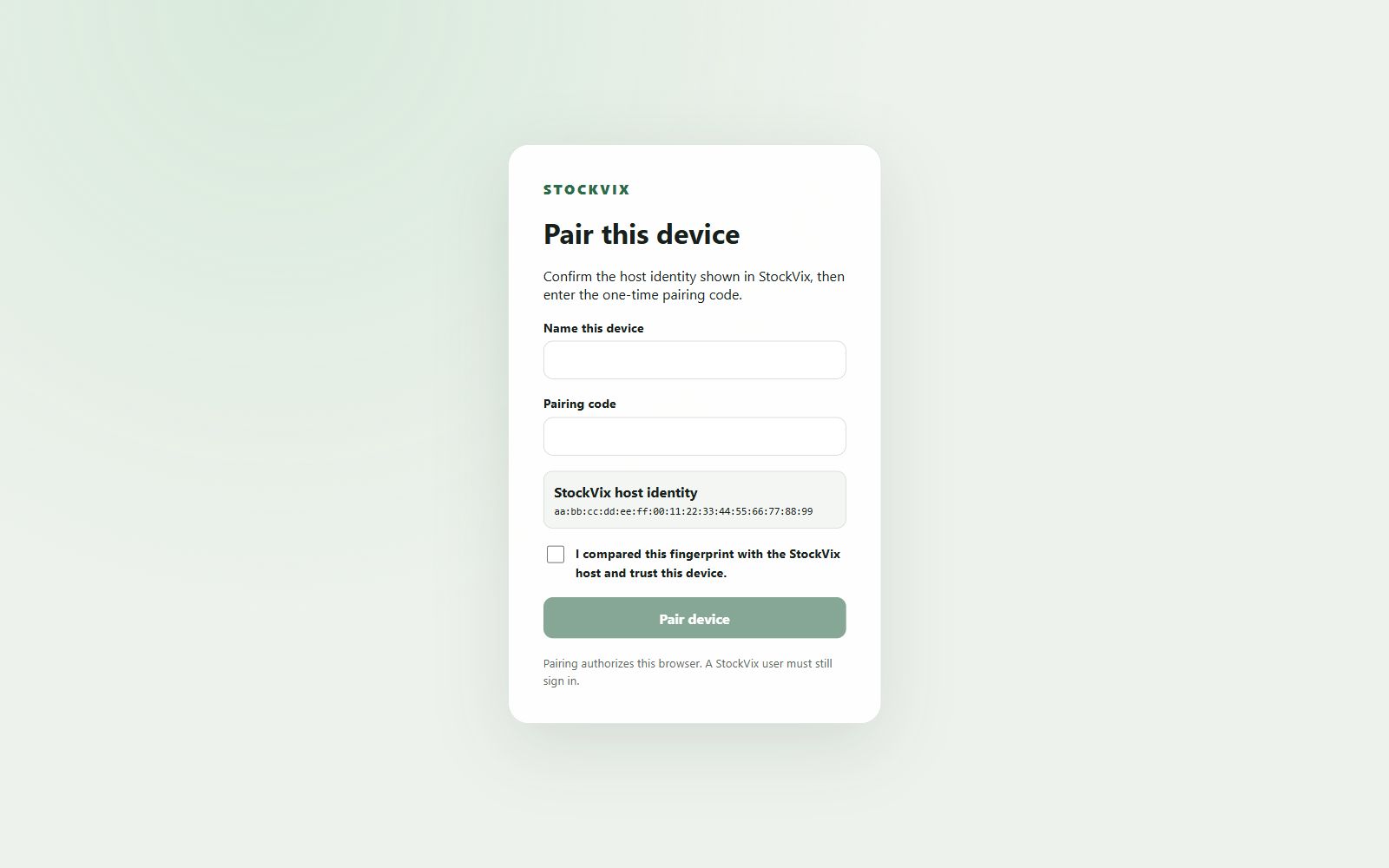
- Use the address and pairing/sign-in workflow shown by StockVix for an approved device.
- Confirm the operator’s register, location and scoped permissions.
Keep the host available
StockVix and its host computer must stay running. A disconnected browser is not an independent inventory database and cannot assume a transaction was posted while the host was unreachable.
Restrict exposure
Do not forward the POS port to the public internet or bypass authentication. Revoke unwanted access using the connection controls. Test a real device’s camera and printer before routine checkout.