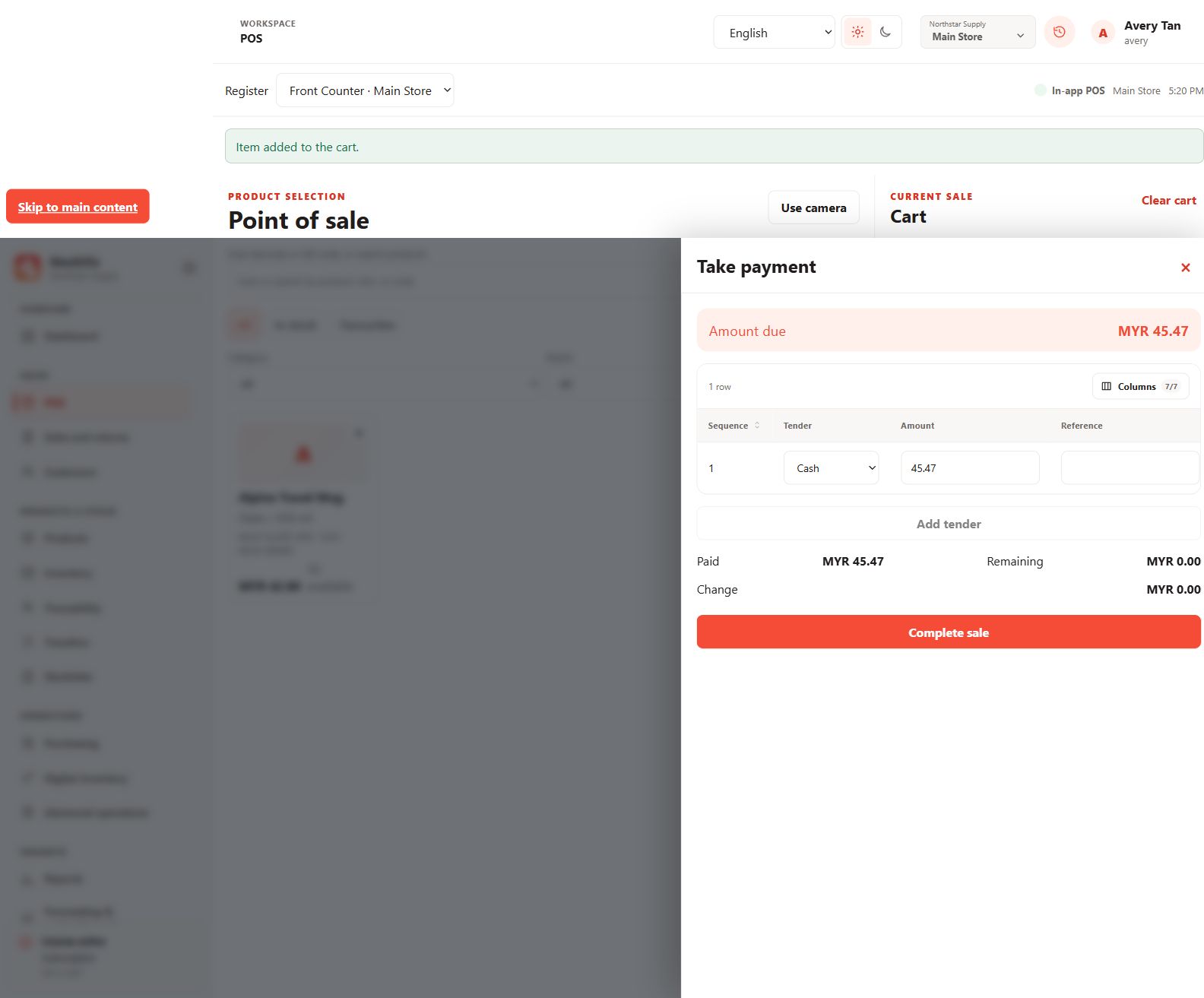
Build the cart
- Open POS and select the correct register and location.
- Choose a customer or walk-in sale.
- Click a product or scan/search its barcode, QR code, SKU or product name. Verify that the line actually appears in the cart.
- Review quantities, stock availability, taxes, discounts and the amount due.
Use scanning safely
Use a connected scanner or the camera action when supported and permitted. Network-browser camera access depends on the browser’s secure-connection requirements. Confirm the resolved variant before adding a scanned item.
Record payment
Choose the tender method and enter the actual amount received. External card or transfer tenders record your payment confirmation; StockVix does not itself charge the customer through a payment gateway.
Confirm completion
Complete checkout, then confirm the saved sale, receipt and stock effect. Save or print the receipt as needed. If an error leaves the result uncertain, check sales history before repeating the transaction.