Prepare both locations
Set up active source and destination locations with suitable stock areas. Confirm your access to both locations and the source’s available stock.
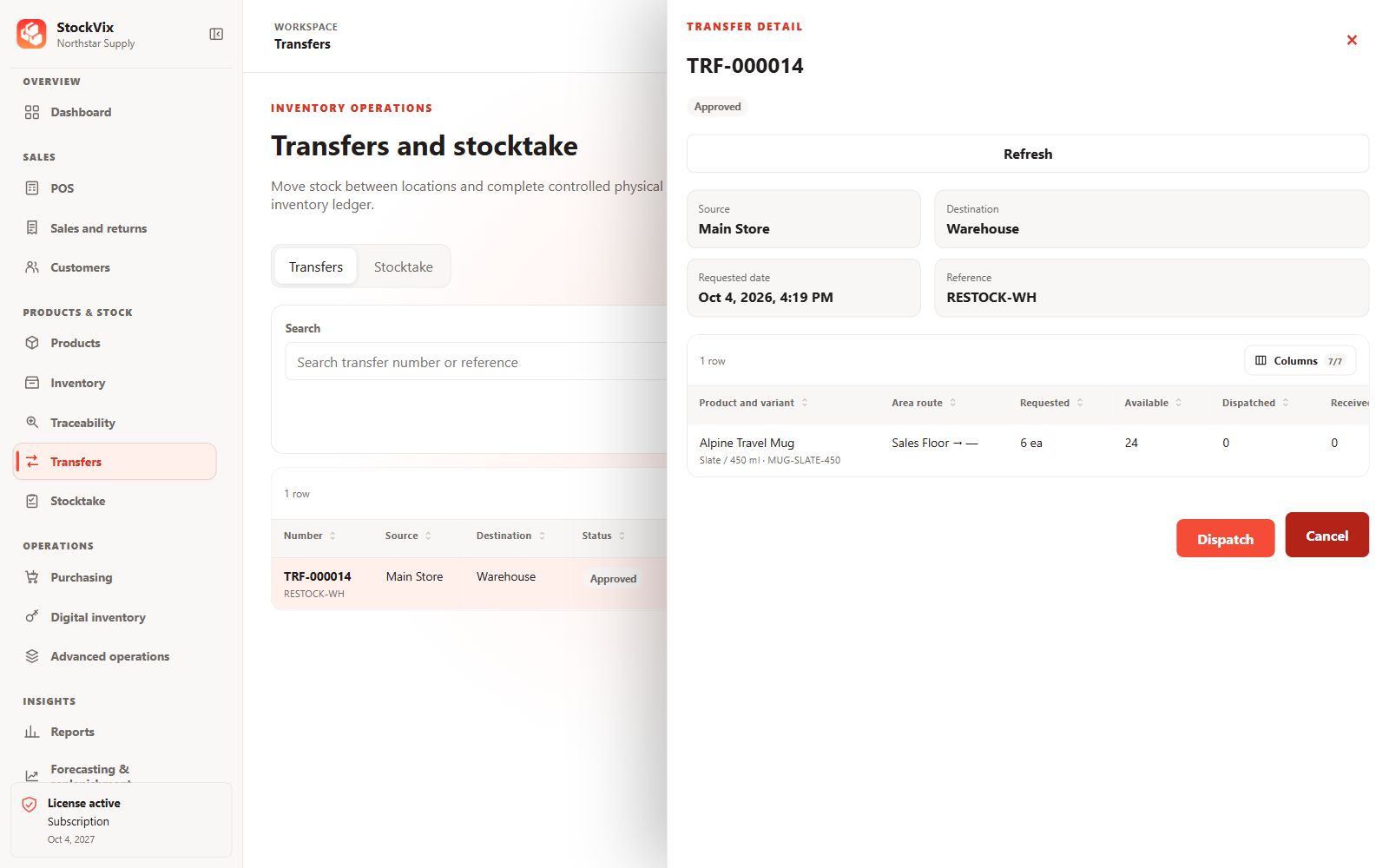
Create and approve a transfer
- Open Transfers and create a draft.
- Select different source and destination locations and stock areas.
- Add items, quantities and required tracking allocations. Save and review the draft.
- Approve the document when authorized.
Dispatch and receive
Dispatch only the confirmed quantity from the source. Dispatched stock is in transit until it is received. At the destination, record actual received quantities and resolve any discrepancy through the supported workflow.
Confirm recovery after an error
Reopen the saved transfer and inspect its state, dispatched and received totals before retrying. Do not create a second transfer merely because the first response was delayed.